Adding signature to a pdf file is pretty easy with SignPDF.Cloud's pdf template creator. You just need to signup for a free or paid account and follow these simple steps.
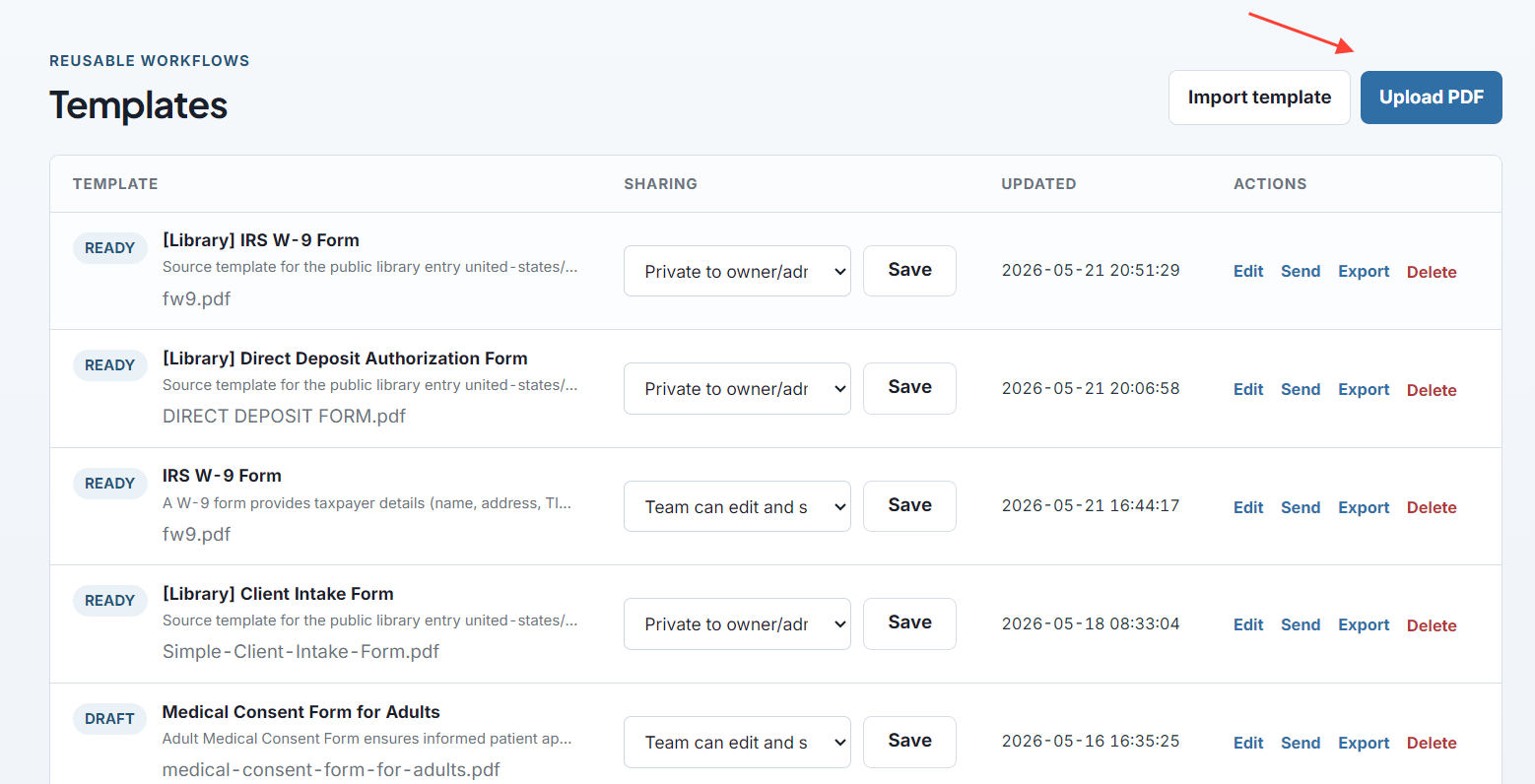
1- After you login to your Sign PDF Cloud account, open templates page, this page lists all the templates you have created.
Then click Upload PDF button.
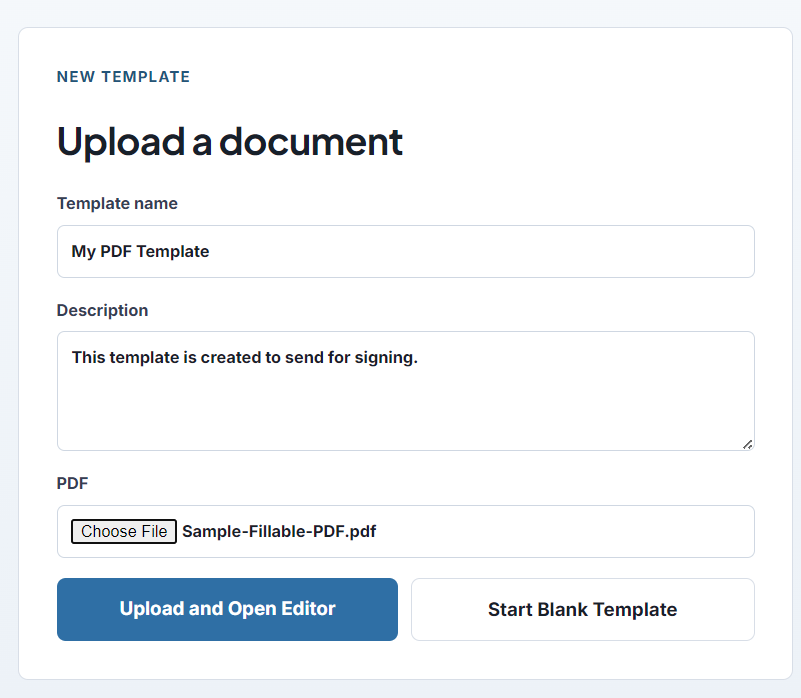
2- On upload pdf page, enter template title, a small description so you remember why you created that pdf templates and select the pdf file from your computer. And then click Upload and Open Editor button.
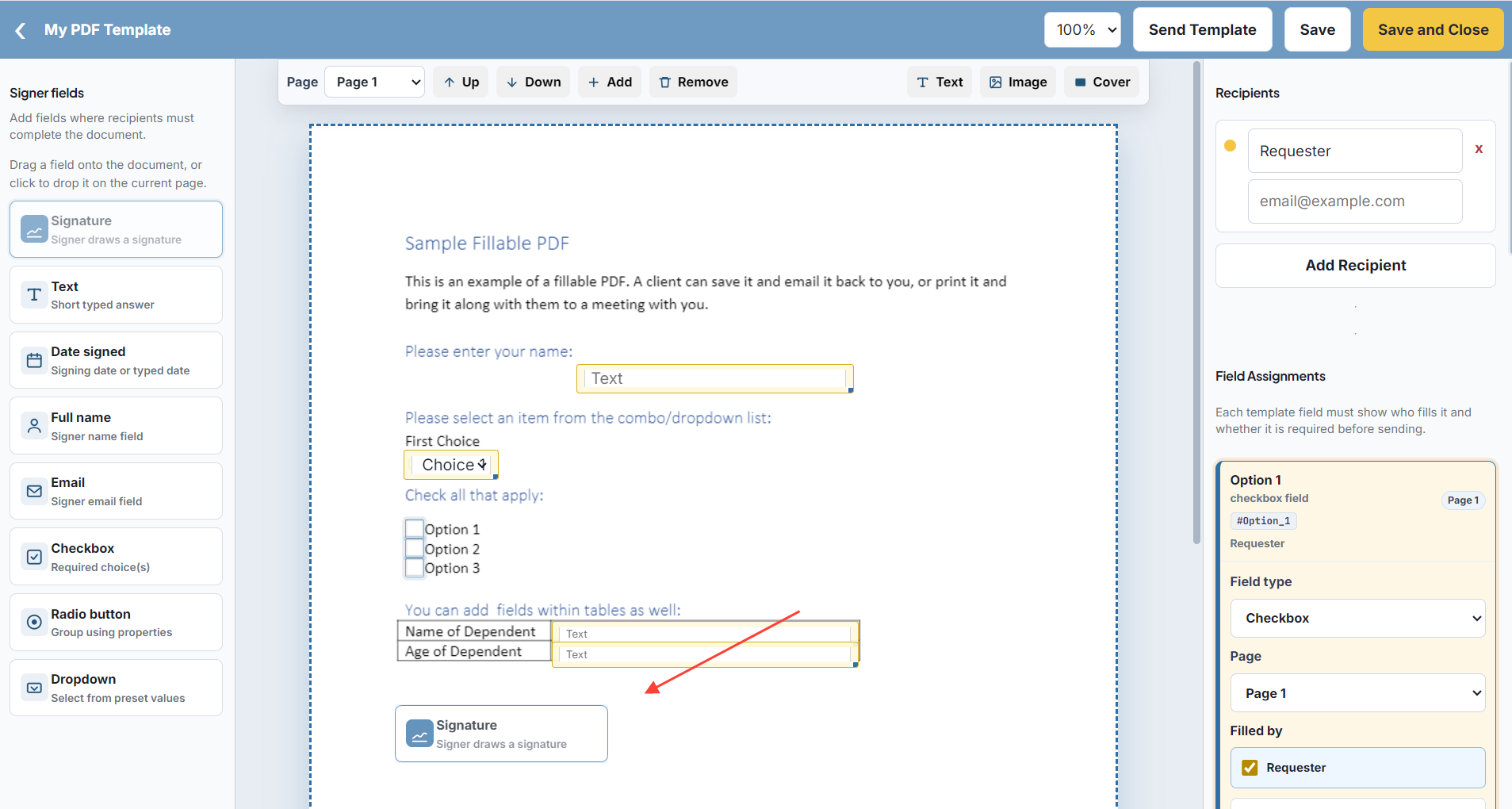
3- Now this will open template editor page, here you can drag/drop form fields or signatures. Edit the template as you need. 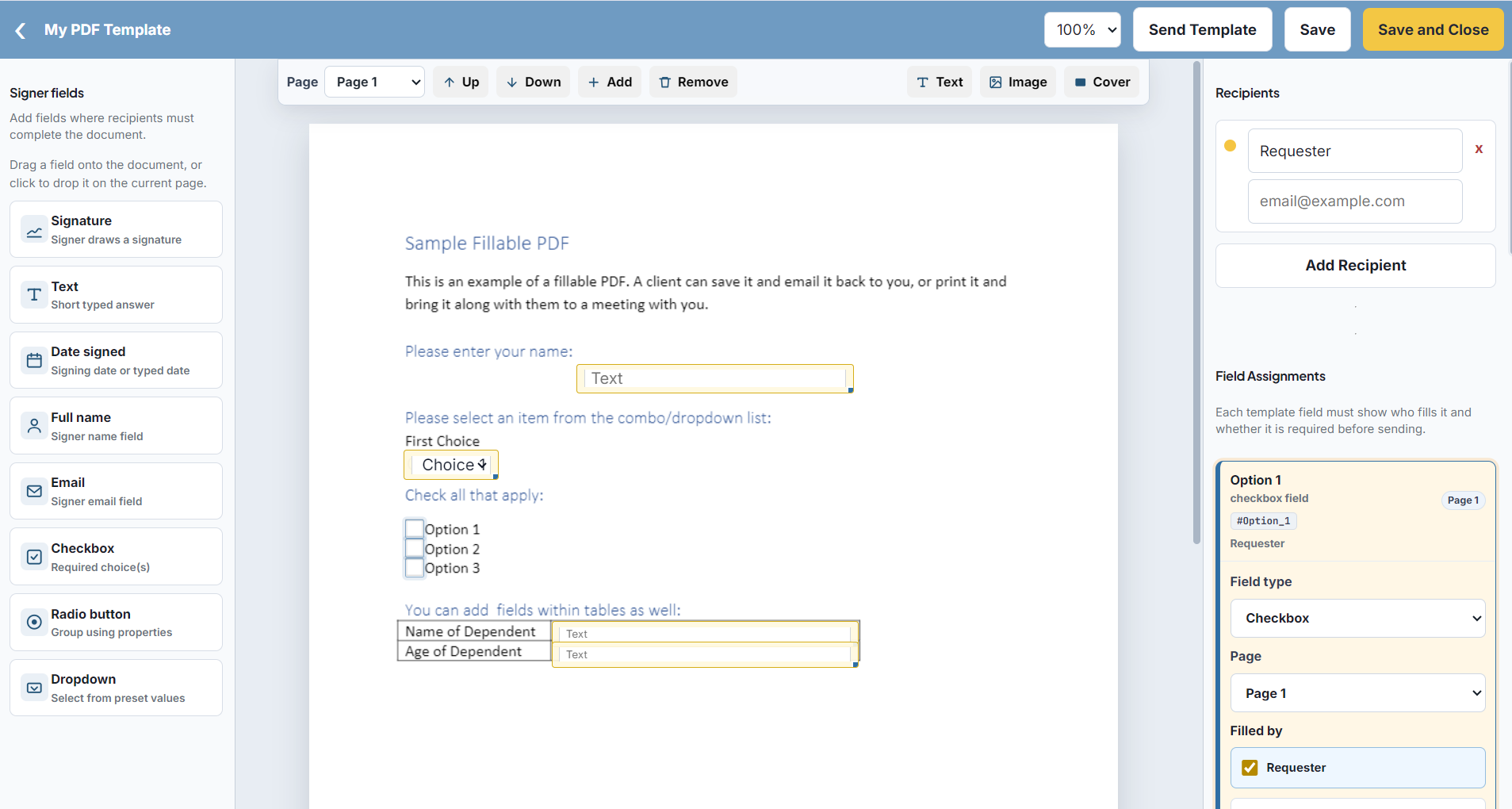
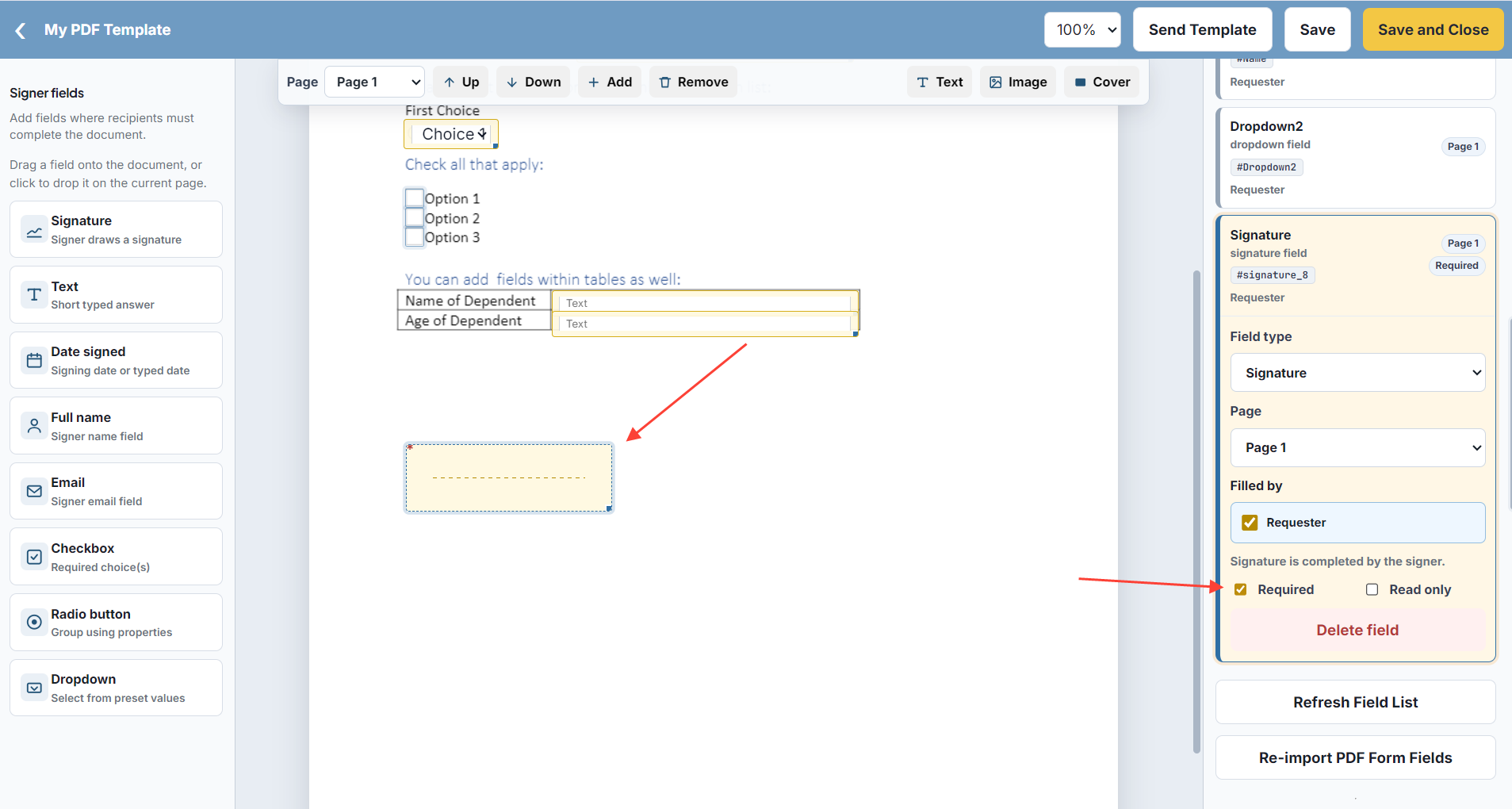
4- We just added a signature into our template and mark it Required from properties on right panel. Now after adding signature that we need, click Save and Close button.
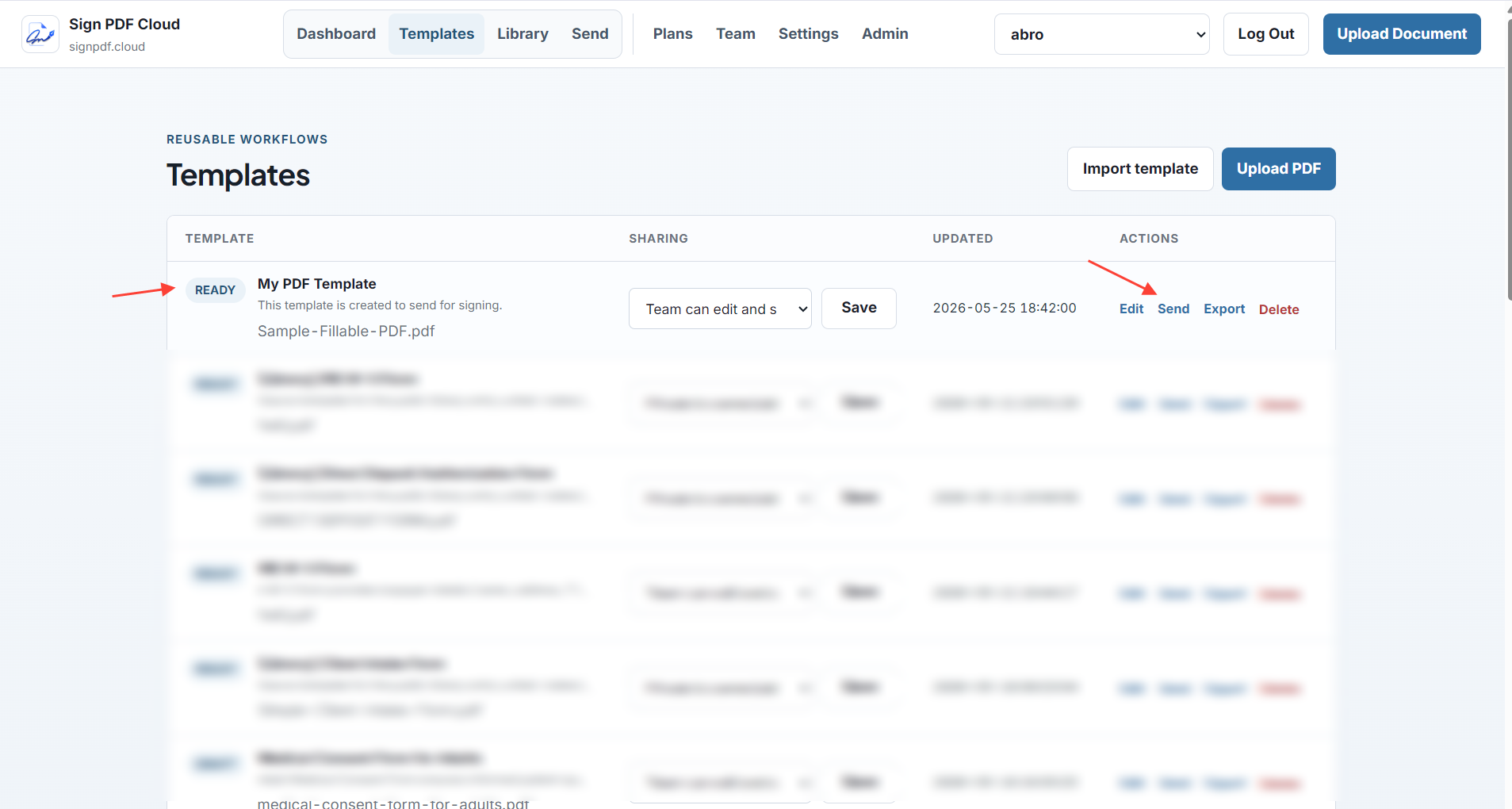
5- Now we can see our template in the our templates list, here click Send link to design the signing envelop again, this will make sure that any new changes we make in envelop actually does not change the original template.
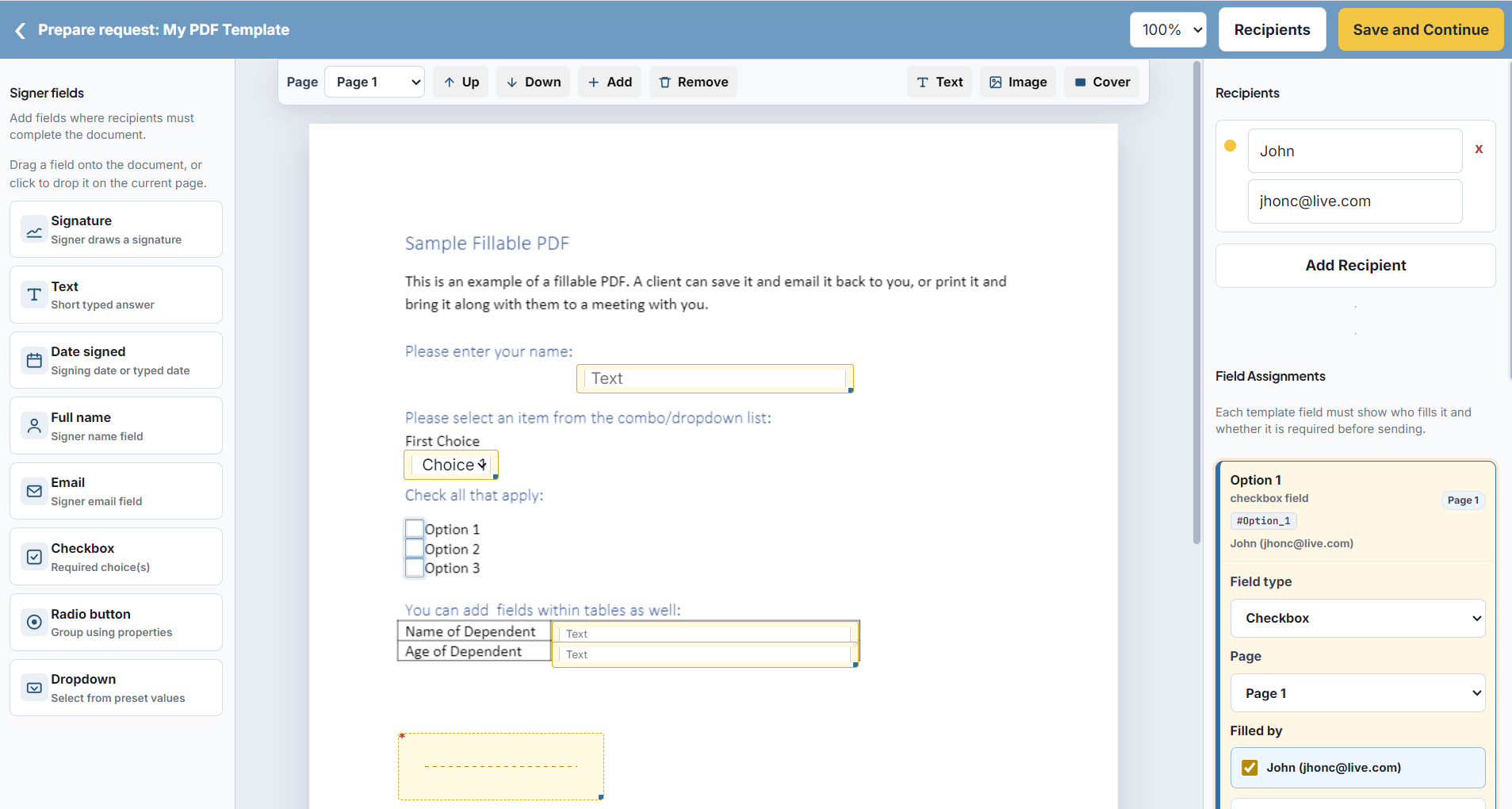
6- On envelop editor we need to just add recipients to send the document for signing. This will just needs their name and valid email address. And then click Save and Continue.
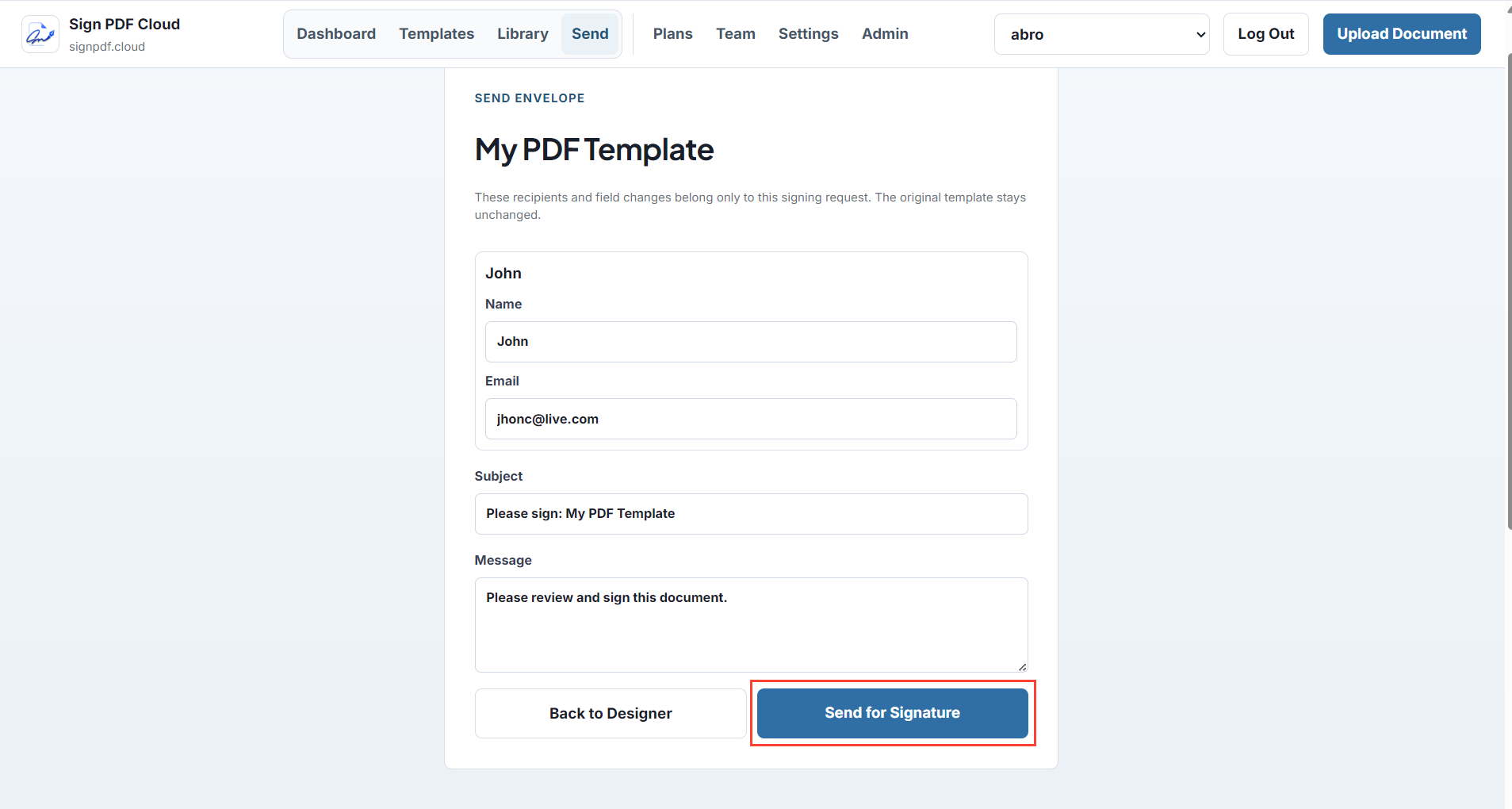
7- On next page, we can adjust or add more details about the signing request and click Send for Signature button.
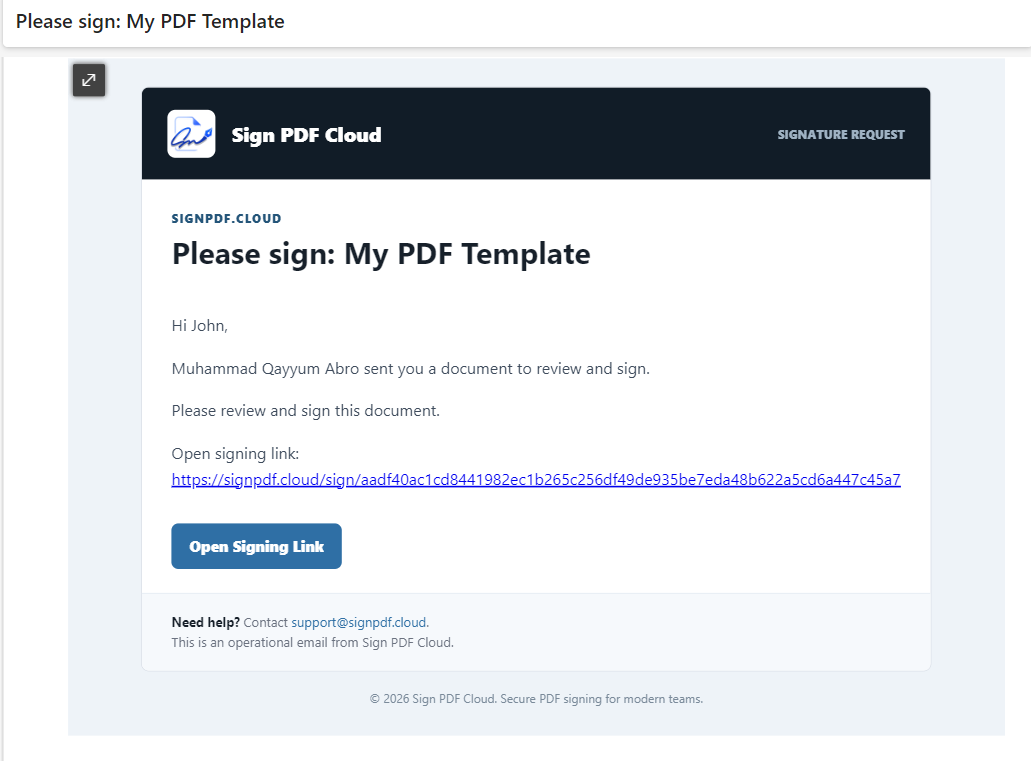
 8- Recipient will get the signing link in their inbox almost immediately, you can also remind them to check thier Junk folder if they didn't get the email in their inbox.
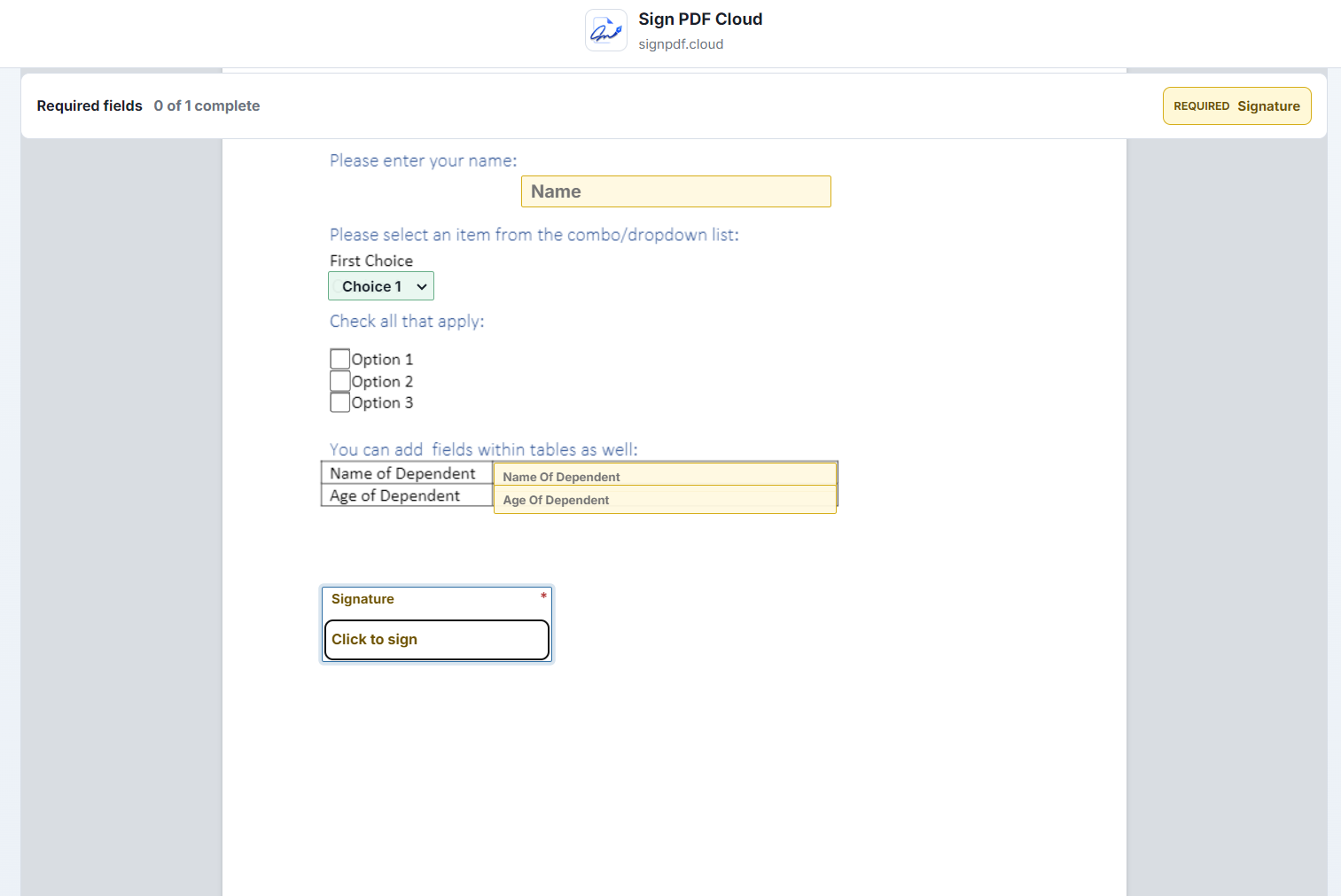
This is how pdf signing page looks like, here recipient will add signature to pdf document and complete the signing request process.